
Getting Started
Installation
LemonUp is a single native binary for Linux (x64), Windows (x64), and macOS (Intel and Apple Silicon).
# macOS and Linux
brew install archcorsair/lemonup/lemonup# Windows
scoop bucket add lemon-bucket https://github.com/archcorsair/lemon-bucket
scoop install lemonup# Try it without installing
nix run github:archcorsair/lemonup
# Install it to your profile
nix profile install github:archcorsair/lemonup# LemonUp isn't on the AUR. Build the package from the repo.
# To update, run git pull and makepkg -si again.
git clone https://github.com/archcorsair/lemonup.git
cd lemonup/packaging/aur/lemonup-bin
makepkg -si# Needs a Rust toolchain (the version is pinned in mise.toml)
git clone https://github.com/archcorsair/lemonup.git
cd lemonup
cargo build --release -p lemonup-app --bin lemonupNix Flake
To add LemonUp to a NixOS or Home Manager configuration, use it as a flake input:
{
  inputs.lemonup.url = "github:archcorsair/lemonup";

  # Then add the package to environment.systemPackages (NixOS)
  # or home.packages (Home Manager):
  #   inputs.lemonup.packages.${pkgs.system}.default
}
Nix downloads LemonUp prebuilt from the lemonup Cachix cache. The first time, it asks whether to trust the cache; answer yes, or add these lines to your nix.conf:
extra-substituters = https://lemonup.cachix.org
extra-trusted-public-keys = lemonup.cachix.org-1:AgnIoDYMOCqPYKjZTprybwJ19cEqLxlmCP3H3myo03A=
GitHub Releases
Download the binary for your platform from the Releases page:
| Platform | File |
|---|---|
| Linux (x64) | lemonup-linux-x64 |
| Windows (x64) | lemonup-windows-x64.exe |
| macOS (Intel) | lemonup-macos-x64 |
| macOS (Apple Silicon) | lemonup-macos-arm64 |
Rename it to lemonup (lemonup.exe on Windows) and put it somewhere on your PATH. On Linux and macOS, make it executable first:
chmod +x lemonupmacOS
The release binaries are not signed. If macOS blocks a binary you downloaded with a browser, remove the quarantine flag: xattr -d com.apple.quarantine lemonup
First Launch
Start LemonUp:
lemonupThe first time, LemonUp opens Setup. It has three steps.
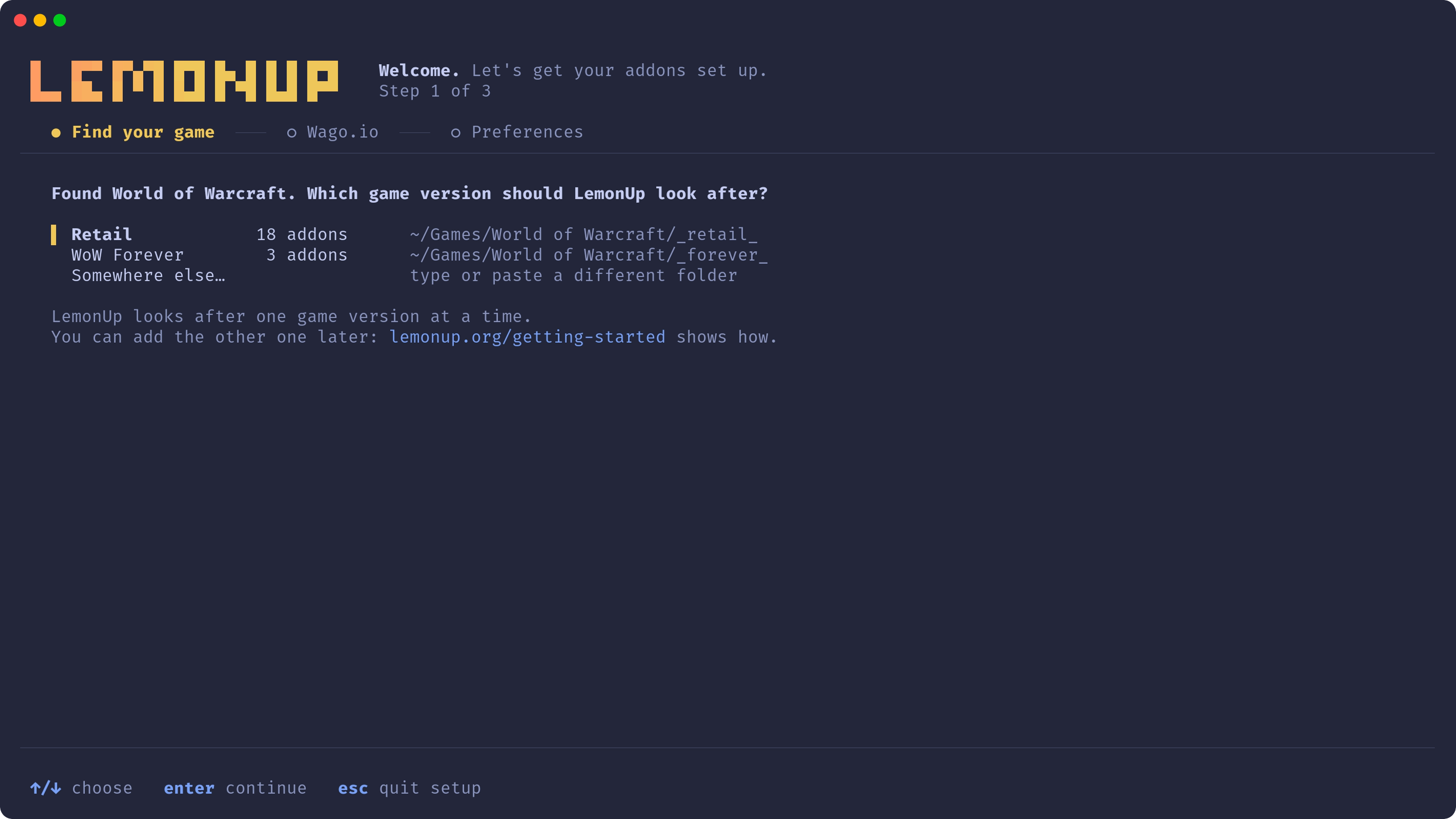
Step 1: Find Your Game
LemonUp starts looking for World of Warcraft on its own. It checks the usual install places first (including Wine, Bottles, and Steam on Linux), then your home folder. Press esc to stop looking and choose the folder yourself.
When it finds the game, it lists each game version with its addon count, for example "Retail, 18 addons". Pick the one LemonUp should look after and press enter. "Somewhere else…" lets you type or paste a different folder.
You can give any folder of the game: the game folder itself, _retail_, _forever_, Interface, or AddOns. LemonUp finds the AddOns folder inside it.
If LemonUp can't find the game, it offers three choices:
- Type or paste the game folder
- Search another drive (on Windows, one drive at a time)
- Search the whole computer, which can take a few minutes
Step 2: Wago.io
Paste your Wago.io key, or leave the box empty to skip this step. Searching Wago.io, and updating addons that came from it, needs your own key. Wago gives one to its Patreon supporters: addons.wago.io/patreon. Addons from GitHub, WoWInterface, and TukUI work without a key. You can add the key later in Settings.
Step 3: Preferences
Use ← → to change them:
- Theme: Dark, Light, or Terminal.
- Back up my game settings before updates: On. Your game settings are your keybinds, macros, and addon setups (the game's WTF folder).
- Backups to keep: 5.
If Setup found both Retail and WoW Forever, a fourth row, "Also set up" the other game, is there too. It is off until you turn it on. You can add a game later with p.
Press enter to finish and show your addons. You can change all of these in Settings later.
Your Addon List
After setup you see your addon list. The header shows the game version, the AddOns folder, how many addons you have, how many updates are ready, and when LemonUp last checked.
Addons you installed yourself start out "Not linked": LemonUp doesn't know where they came from yet, and doesn't update them. While nothing is linked, a welcome card shows on the list. Press F to find your addons online and link the ones LemonUp recognizes. To link one addon, pick it and press f. You can also run lemonup find (see CLI). Press d to hide the card.
The keys you will use most:
U: update every addon that has an updateu/c: update or check this addon, or the selected onesenter: open Details/: filter the listi: install an addonb: backups of your game settingsp: switch to another game, or add ones: Settings?: Help for the screen you are on
The key line at the bottom only shows keys that work right now. See Keyboard Shortcuts for every key.
Adding a Second Game Version
LemonUp can look after every game version you play, for example both Retail and WoW Forever. Each game has its own settings, addon list, and backups, and its own AddOns folder.
If Setup found both, you already had the choice to set up the other one in step 3. Otherwise, add it at any time:
- Press
pon your addon list to open "Switch game". - Choose "Add another game…" and press
enter. - Pick the install in Setup's first step and press
enter.
LemonUp sets it up and opens it. The header shows its name, for example "WoW Forever". The Wago.io key, theme, and update checks are shared by all your games.
To go back, press p, choose the other game, and press enter. Plain lemonup opens the game you used last. When another game has updates ready, the header says so.
See Switch Between Your Games for what else the sheet does, including removing a game.
On the command line, each game is a profile. Commands use your first game unless you pick another with --profile:
lemonup profiles                      # list your games
lemonup update-all                    # your first game
lemonup --profile forever update-all  # the other one
The profile option goes before any command. Each game stays with its own AddOns folder, and two games can't share one. See One Folder per Profile.
Command Line
Checking, updating, installing, saving and loading your addon list, and putting a backup back also work as commands:
lemonup check
lemonup update-all
See CLI for every command.
Upgrading from v1
If you used LemonUp 1.x, your settings and addons are brought over on first launch. See Upgrading from v1.