
Configuration
Some settings are the same for all your games, and some belong to one game. The ones for all games are stored in shared.toml, the ones for one game in that game's config.toml (see File Locations). Change them in Settings: press s (or ,) on your addon list. Changes save right away.
Settings shows two groups: "For all games", and "For" the game you are in, for example "For Retail". Changing a setting under "For all games" changes it for every game. The title shows the LemonUp version you are running, such as "Settings · LemonUp 2.9.1".
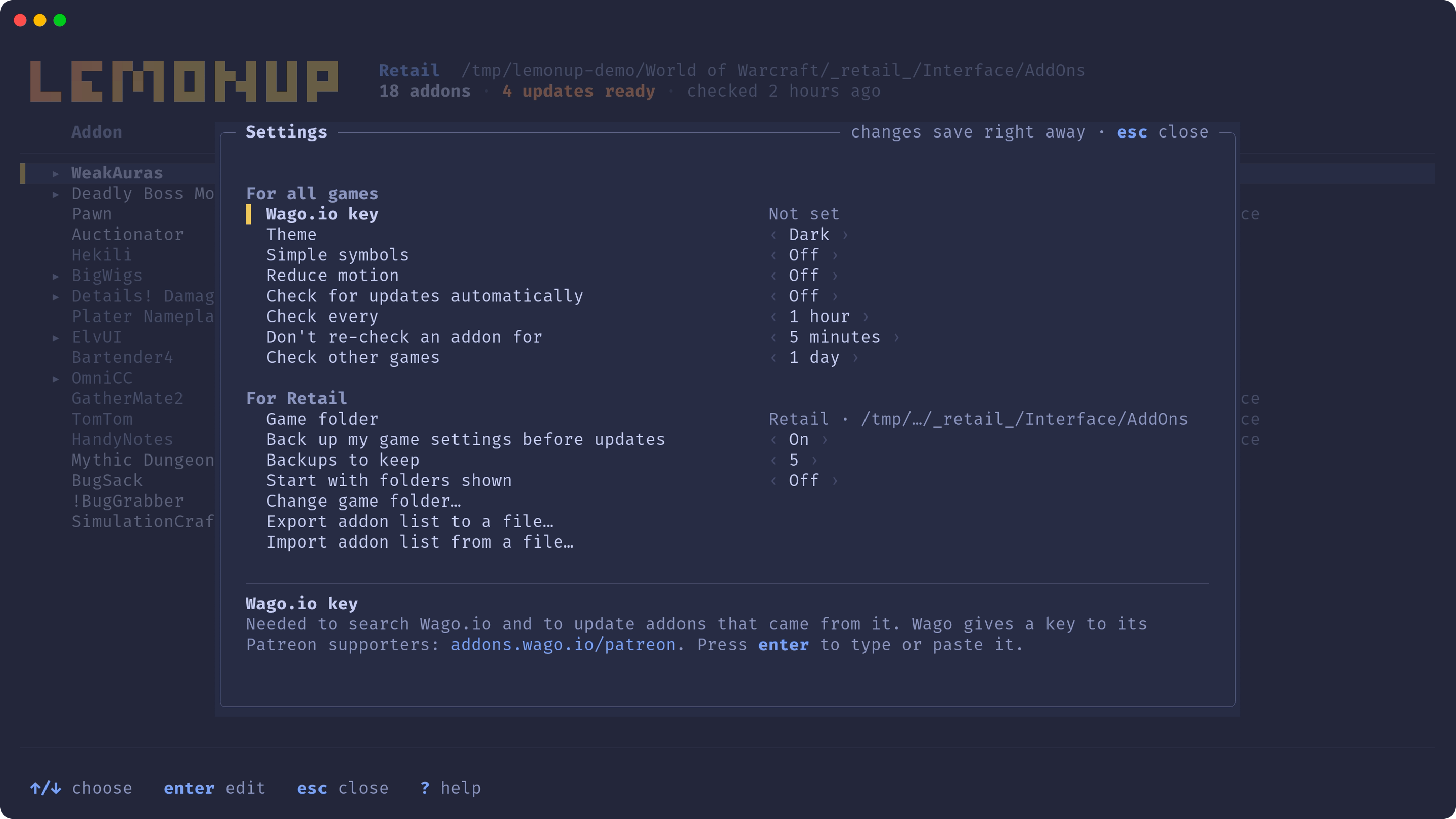
In Settings, ↑ ↓ choose a row, ← → change its value, and enter switches it on or off, types your Wago.io key or GitHub token, or runs a row such as "Change game folder…".
Settings Reference
Each row in Settings and the key it writes.
For All Games
These settings are shared by every game. They live in shared.toml.
| Row | Key | Default | What it does |
|---|---|---|---|
| Wago.io key | wago_api_key | Not set | Your Wago.io key, for searching Wago.io and updating its addons |
| GitHub token | github_token | Not set | Optional: raises GitHub's limit from 60 to 5,000 requests an hour |
| Theme | theme | dark | dark, light, or terminal |
| Simple symbols | simple_symbols | Off | Plain ASCII symbols and the word LEMONUP in place of the block logo |
| Reduce motion | reduce_motion | Off | A still symbol in place of the spinner, and no shimmer |
| Terminal progress bar | terminal_progress | On | Show progress in your terminal's own progress bar, where it draws one |
| Check for updates automatically | auto_check_enabled | On | Check in the background while LemonUp is open |
| Check every | auto_check_interval_secs | 1 hour | How often the background check runs |
| Don't re-check an addon for | check_interval_secs | 5 minutes | An addon checked more recently is skipped |
| Check other games | check_other_games | 1 day | How often the games you are not in are checked |
| Check for LemonUp updates | check_lemonup_updates | On | Look on GitHub once a day for a newer LemonUp |
Addon Sources
If no key is saved, LemonUp uses the WAGO_API_KEY environment variable. See Wago.io.
If no GitHub token is saved, LemonUp uses GITHUB_TOKEN, then GH_TOKEN. See GitHub Token for how to make one.
Updates
Every check in the TUI (in the background, with C or c, and the check before an update) skips addons that were checked within "Don't re-check an addon for". lemonup check on the command line always checks. The values in shared.toml are in seconds.
Check other games sets how often LemonUp checks the games you are not looking at, while it is open. The choices are Off, 1 hour, 3 hours, 6 hours, 12 hours, 1 day (the default), and 3 days. In shared.toml they are off, 1h, 3h, 6h, 12h, 1d, and 3d. It checks one game at a time and doesn't update them. When another game has updates ready, the header says so. See Switch Between Your Games.
Check for LemonUp updates looks on GitHub once a day, while the TUI is open, for a newer release of LemonUp itself. When one has been out for 6 hours, the top right of the addon list shows ↑ Update available 2.7.0 → 2.8.1. Update the way you installed LemonUp. When GitHub can't be reached, nothing shows. lemonup commands on the command line never look.
Look
- Theme: Terminal uses your terminal's own background and its 16 colors. Its muted text is your terminal's text color, dimmed. When
NO_COLORis set, LemonUp uses Terminal with no colors at all. If your terminal does not report full color, LemonUp starts in Terminal, and you can still choose Dark or Light. - Simple symbols: For terminals and fonts that show boxes or question marks. It is on while your locale (
LC_ALL,LC_CTYPE, orLANG) is not UTF-8.
For Each Game
These settings belong to one game. Each game has its own config.toml.
| Row | Key | Default | What it does |
|---|---|---|---|
| Back up my game settings before updates | backup_wtf | On | Back up the WTF folder before updates |
| Backups to keep | backup_retention | 5 | How many backups to keep |
| Start with folders shown | show_libs | Off | Open the list with every addon's folders shown |
Start with folders shown: ] and [ still show or hide all folders while LemonUp runs.
Backups
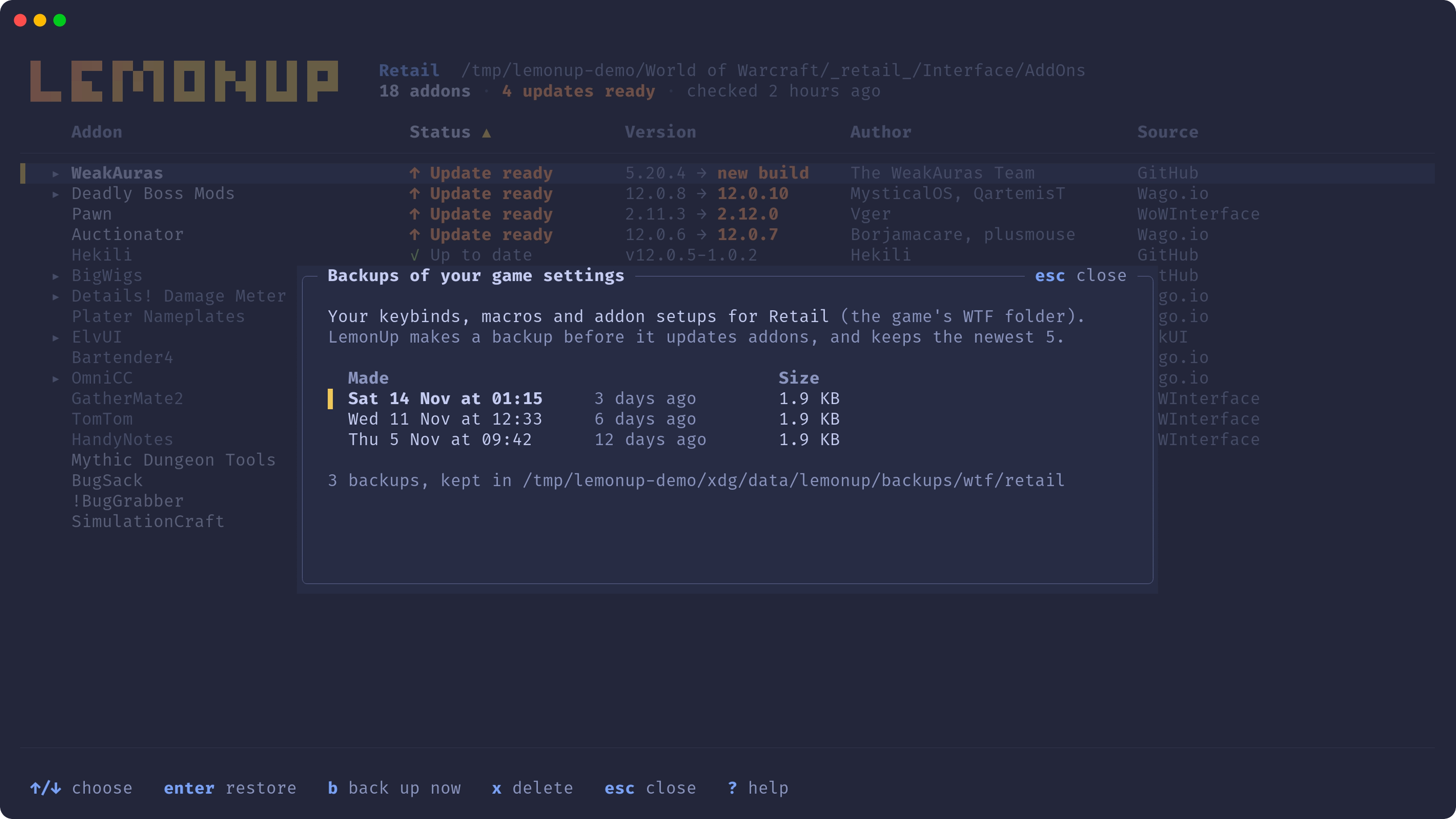
Your game settings are your keybinds, macros, and addon setups, kept in the game's WTF folder (_retail_/WTF or _forever_/WTF). With backup_wtf on, LemonUp backs them up before it updates addons, in the TUI and with lemonup update or update-all (not with --dry-run). It skips the backup when the newest one for that game version is less than 60 minutes old. If the backup fails, LemonUp warns and goes on with the update.
You can also back up at any time: press b to open Backups, then b again. When a new backup is made, the oldest ones beyond "Backups to keep" are removed.
Backups are kept per game version (retail, forever). The list, "Backups to keep", the 60 minute rule, and putting a backup back only see that game version's backups. restore-backup refuses a backup from the other game version. Backups from earlier 2.0 builds, stored without a game version folder, are moved into the right folder on their own.
Your Setup
| Row | What it does |
|---|---|
| Game folder | Shows the game version and AddOns folder (addon_dir). Read only. |
| Change game folder… | Opens Setup, where you can choose a different game folder |
| Export addon list to a file… | Exports your addon list to ~/lemonup-addons.json |
| Import addon list from a file… | Installs the addons listed in ~/lemonup-addons.json into this game folder |
The AddOns folder must be a _retail_ or _forever_ Interface/AddOns folder. The game version comes from it. Typical locations:
- Windows:
C:\Program Files (x86)\World of Warcraft\_retail_\Interface\AddOns - macOS:
/Applications/World of Warcraft/_retail_/Interface/AddOns - Linux: Found in the usual Wine, Bottles, and Steam locations
Each game stays with the AddOns folder its addons belong to (see Games and Profiles). To move a game to another folder on purpose, use "Change game folder…". --addon-dir <PATH> only works with the folder the profile already uses, or for a new profile, which then keeps that folder. To look after a second game, add it with p in the TUI. See Switch Between Your Games.
Other Keys
config.toml also holds keys you don't change in Settings:
| Key | What it is |
|---|---|
hide_first_run_card | true after you hide the welcome card with d |
find_sources | The sources Find asks for this game, set with 1 2 3 in Find, for example ["wowinterface", "tukui"] |
| the shared keys | Copies of the settings in shared.toml, for older versions of LemonUp. shared.toml wins |
schema_version | The file format version, managed by LemonUp |
user_agent | Sent with web requests, managed by LemonUp |
shared.toml also holds wago_hash_notice_shown, true once Find has shown "Sends folder names and file hashes to Wago.io." on this computer.
Games and Profiles
Each game you look after is a profile. A game has its own config.toml, addon list, and backups, and it is bound to one AddOns folder. In the TUI you see games, named by their game version, such as "Retail" and "WoW Forever". On the command line you use the profile name.
The game you set up first is the default profile, called default. Other games are named after their game version (forever, retail), with a number added when you have two of one version, for example forever-2. Run lemonup profiles to see the names:
lemonup profiles
lemonup --profile forever check- Plain
lemonupopens the game you used last. If that game can't be opened, the default game opens and LemonUp says why. With--profile <name>, it opens that game. - Every other command uses the default game unless you pass
--profile. - Switching with
pin the TUI is the same as starting LemonUp with--profile. - Removing a game in the TUI forgets its addon list and settings. Its game folder and backups stay on disk. You can't remove the game you are in, or the default game.
Profile names may contain letters, digits, -, and _. A profile other than default cannot use the same AddOns folder as the default profile. Two games can't share an AddOns folder.
One Folder per Profile
A profile's addons belong to one AddOns folder, and the profile stays with it. If you point a profile at a different folder with --addon-dir:
sync,update,update-all, the install commands,import-addons, andrestore-backuprefuse to run, and the error suggests a separate--profile <name>for that install.checkruns read-only with a warning, and its results are not saved.- The TUI refuses to start with that
--addon-dir.
To move a profile to another folder on purpose (for example after moving your WoW install), open Settings (s), choose "Change game folder…", and pick the new folder in Setup. Your addons are kept, and LemonUp first saves the list to rebind/tracked-before-rebind-<timestamp>.json in the data folder. Addons whose folders are missing in the new location drop out on the next look through the folder. You can bring them back with lemonup import-addons --input <that file>.
Environment Variables
| Variable | Description |
|---|---|
WAGO_API_KEY | Wago.io key, used when none is saved in Settings |
GITHUB_TOKEN or GH_TOKEN | GitHub token, used when none is saved in Settings (GitHub Token) |
NO_COLOR | Any value turns colors off: LemonUp uses the Terminal theme with no colors |
RUST_LOG | Log level filter |
Logging
Logs are JSON lines. Where they go depends on how you run LemonUp:
- CLI commands (
check,update-all, and so on) write to stderr. - The TUI (
lemonuporlemonup tui) appends tologs/lemonup.login the data folder of the game you are in (see File Locations).
Release builds are quiet by default and only log warnings and errors (warn). Set RUST_LOG to log more, for example:
RUST_LOG=info lemonup update-all
RUST_LOG=debug lemonup check 2> lemonup-log.json
RUST_LOG=debug lemonup tui
Security
On Linux and macOS, shared.toml and config.toml are written readable only by your user, since they may contain your Wago.io key and GitHub token.
File Locations
LemonUp uses your operating system's standard folders for application data.
| Platform | Settings (config.toml, shared.toml) | Data (state.sqlite, backups) |
|---|---|---|
| Linux | ~/.config/lemonup/ | ~/.local/share/lemonup/ |
| macOS | ~/Library/Application Support/org.archcorsair.lemonup/ | ~/Library/Application Support/org.archcorsair.lemonup/ |
| Windows | %APPDATA%\archcorsair\lemonup\config\ | %APPDATA%\archcorsair\lemonup\data\ |
- Settings for all games are in
shared.toml, next to the default game'sconfig.toml, for example~/.config/lemonup/shared.tomlon Linux. The first time LemonUp 2.3.0 runs, it createsshared.tomlfrom the settings you already have: your Wago.io key, theme, symbols, motion, and checks.config.tomlkeeps its copies.shared.toml.locknext to it keeps two LemonUps from saving at once. - Backups of your game settings are stored in
backups/wtf/<client>/inside the data folder (retailorforever). - Deleted addons are moved to
trash/inside the data folder.zputs them back from there. - Rebind snapshots are stored in
rebind/inside the data folder. - The newest LemonUp release LemonUp found is kept in
latest-release.jsoninside the data folder, one for all games. - TUI logs are written to
logs/lemonup.loginside the data folder. - Other games live in
profiles/<name>/inside both folders, so a named profile's TUI log isprofiles/<name>/logs/lemonup.loginside the data folder.shared.tomlis not inside one: there is only one. - The game you used last is stored in
shared.toml. Plainlemonupopens it. - On Linux,
XDG_CONFIG_HOMEandXDG_DATA_HOMEare respected.
Troubleshooting
Leftover .lemonup-staging-* Folder
Installs and updates unpack the new version into a hidden .lemonup-staging-* folder inside AddOns and swap it in with renames. If LemonUp is interrupted in the middle of a swap (for example the terminal is closed or the machine loses power), that folder can stay behind. Its old/ folder holds the previous versions of the addon folders. LemonUp doesn't delete it. lemonup sync prints a warning: leftover update staging folder <path> ... line to stderr, and the TUI shows a notice. To clean up:
- If an addon is now missing or broken, move its folders from
old/back into AddOns, then delete the staging folder. - If everything works, delete the staging folder.
Addon Missing from the Scan
If LemonUp cannot read an addon folder, the scan skips it and logs a warning (see Logging). The TUI shows a notice ("N addon folders could not be read; see log"), and lemonup sync counts them in skipped= and lists them on a sync detail: skipped (unreadable): ... line. The addon stays linked and shows up again once the folder is readable. TOC files that are not valid UTF-8 or start with a byte order mark are read anyway.